One Vault of Keys: SSH Without the Chaos
How I stopped juggling six SSH keys and six ssh/config aliases and put every key in one vault, managed by the 1Password agent.
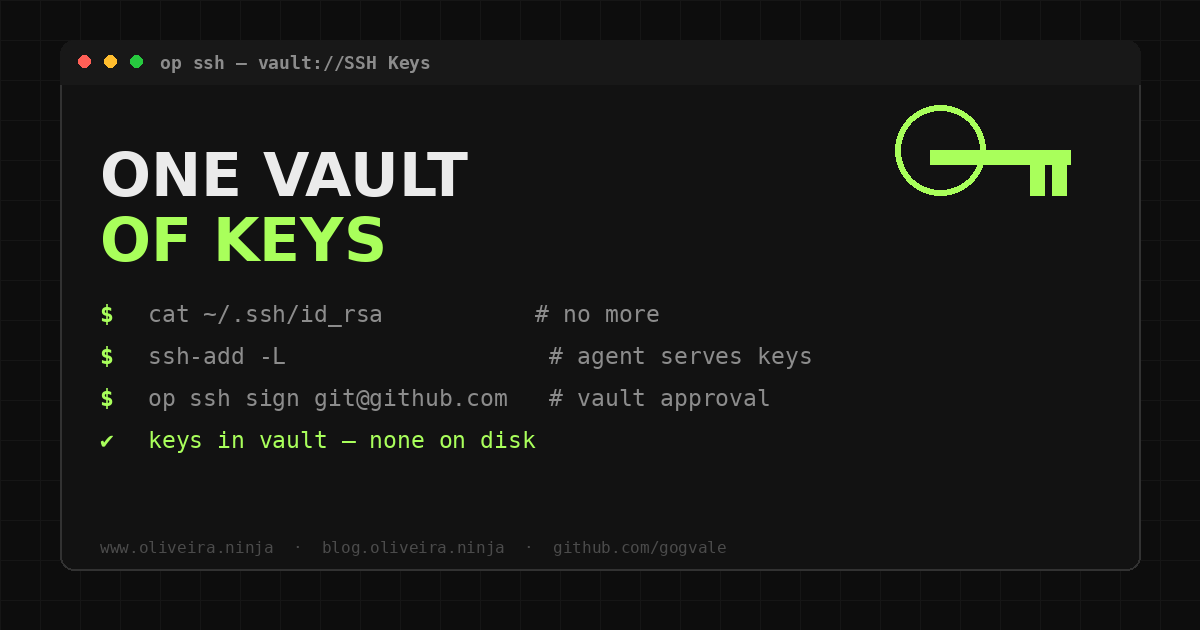
TL;DR — Six SSH keys for six platforms, held together by
ssh/configglue. Deleted them all and put every key in one 1Password vault, served by the agent.
- No key files sitting on disk — the vault holds the key, the agent negotiates with your approval.
- Revoking access when someone leaves: one click, not a scavenger hunt.
- Setup took an afternoon. The alias matrix I used to maintain is gone.
I used to keep a small spreadsheet in my head: which SSH key belongs to which GitHub, which config alias talks to which remote, and which company account was on which laptop. It worked, right up until it did not.
This post is about the day I deleted all my SSH keys and put them in one place.
The problem I did not want to admit
I juggle SSH keys for more accounts than I care to count:
- My personal GitHub.
- My company’s GitHub.
- My client’s GitHub.
- Azure DevOps.
- Bitbucket.
- GitLab.
Each platform needs its own key. Each key needs its own ssh/config entry. And each remote URL needs to point at the right alias, like git@github-work:org/repo.git instead of the normal git@github.com:org/repo.git.
The system works, but it is held together with configuration glue. Add a laptop to the mix and the whole thing multiplies: now every key has to exist on every machine, with the same names, same aliases, same quirks.
GitHub Desktop helps at the edges, but it does not fix the core problem. The keys were still files sitting on my disk, tied to one machine, managed by hand.
The discovery
About a month ago I was poking around 1Password and noticed it had an SSH key option. I had seen it before and never understood the point. A key in a password manager? SSH keys live in ~/.ssh, right? That is what everyone says.
I asked ChatGPT what it was actually for, and the answer changed how I think about keys: 1Password can generate, store, and serve SSH keys through an SSH agent. You never touch the private key file again.
The agent hands it to whatever tool asks, and 1Password decides whether to allow it — with your approval, not just a filesystem check.
That was the missing piece. The keys did not have to live on the machine at all.
The setup
The migration was faster than I expected:
- Deleted every SSH key I had scattered across machines.
- Generated one key per platform directly inside the 1Password vault.
- Added each public key to the corresponding platform (GitHub, GitLab, Bitbucket, Azure DevOps).
- Enabled the 1Password SSH agent.
- Pointed my SSH config at the agent instead of key files.
For anyone with the same multi-account mess, the official 1Password guide walks through it: developer.1password.dev/docs/ssh. There is also a great writeup on organizing git access per customer with the agent, which is exactly the scenario above: Organizing Git Access Per Customer with the 1Password SSH Agent.
The switch itself took an afternoon. The cleanup of old keys took longer, but mostly because I had years of them lying around.
What changed
The immediate win: no more ssh/config alias matrix. Git asks for a key, the agent checks the vault, 1Password asks me if that is okay, and the connection happens. One vault, every platform, every machine.
But the real win is the security model, and that is the part worth telling people about.
Keys that do not sit on disk
A private key as a file on a laptop is a liability. If your machine is compromised, the attacker can copy that file and you may never notice until it is used.
The Shai Hulud supply-chain attacks are a good, recent reminder of how credential theft plays out at scale: malicious packages installed through normal workflows exfiltrate keys and tokens from developer machines, quietly and continuously.
With keys in 1Password, there is no key file to steal. The key is encrypted in the vault, and the agent only exposes it with an explicit approval from the unlocked app. A stolen laptop, a planted npm package, a curious coworker — none of them get a key file they can copy.
Revocation without a hunt
The old way of offboarding someone: find every platform, find every key, delete them, hope you did not miss one.
The new way: remove the item from the vault, or rotate it in place. One place, one action, done. When a contractor leaves, when a client project ends, when a machine is retired — the key stops existing in seconds instead of after a scavenger hunt across five dashboards.
| Old way | New way | |
|---|---|---|
| Where keys live | Files on every laptop | Encrypted in the vault |
| Machine compromise | Key file can be copied | Nothing to copy, approval required |
| Offboarding | Hunt across 5 dashboards | One action in the vault |
“The keys did not have to live on the machine at all.”